






Integrations

Important Notice:

Before committing to any integration on your account in the WMS, please make sure that all your products (SKUs) all have a unique SKU reference number. Our system and most shopping platforms heavily relies on the SKU reference being present. This is to avoid any potential issues that may arise during integration and/or importing your order to the WMS.

Inventory Sync

Keep stock levels up to date on your sales channels

Inventory Sync is a feature available for most integrations, allowing you to sync your stock levels on Pimento to your store.

​Configuration

There are three levels of inventory sync generally available:

  1. Daily: Stock levels will sync daily overnight, this is perfect for brands who operate a single sales channel or are rarely go out of stock. This is available on most channels.
  2. Live: Stock levels will sync immediately when they change on Pimento. This is only available for a few channel integrations (notably Shopify). Whilst this can provide the most timely inventory sync, high-volume sellers can run into issue with Rate Limits (where the store only allows a certain number of updates per hour or day). When this setting is enabled, a daily sync is also performed as per above.
  3. Disabled: Stock levels will not be synced to this sales channel.

Bundles

Inventory Sync will also ensure bundle inventory is synced to your sales channel. For example, if you have 12 units of a TShirt SKU (TS-001) and also sell it on your store as a three pack (TS-001-X3), Pimento will know to sync 12 units to your store for TS-001 and 4 units for TS-001-X3.


How to manage inventory sync

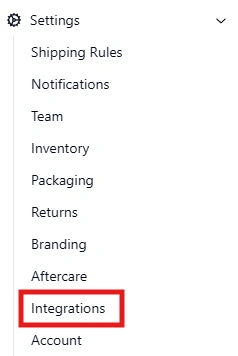
On the Pimento dashboard, navigate to Settings > Integrations, and scroll down to the integration you would like to manage.

Within the card for this integration will be a toggle, which lets you switch between the different configurations. There is also a Perform Sync Now button on some sales chanels, which allows an immediate sync to take place in the background – this can take up to 15 minutes to complete.

Shopify Integration Guide

Shopify-Logo

Important:

Please make sure our location is setup correctly along with your Shipping Profiles and Shipping Zones within Settings -> Shipping and delivery.
You can find helpful information regarding this via Shopify Help, contacting Shopify directly to help with this or contact our IT directly and we will try to help as much as possible.


Useful Links

Help with Setting up Shipping & Delivery. Very useful if you want to restrict certain products to certain countries and also useful to restrict selling to certain countries – https://help.shopify.com/en/manual/fulfillment/setup/shipping-rates/shipping-zones

Shopify can also help with splitting orders. Vary useful for things like pre-orders and products on different shipping profiles – https://help.shopify.com/en/manual/checkout-settings/split-shipping

Instructions

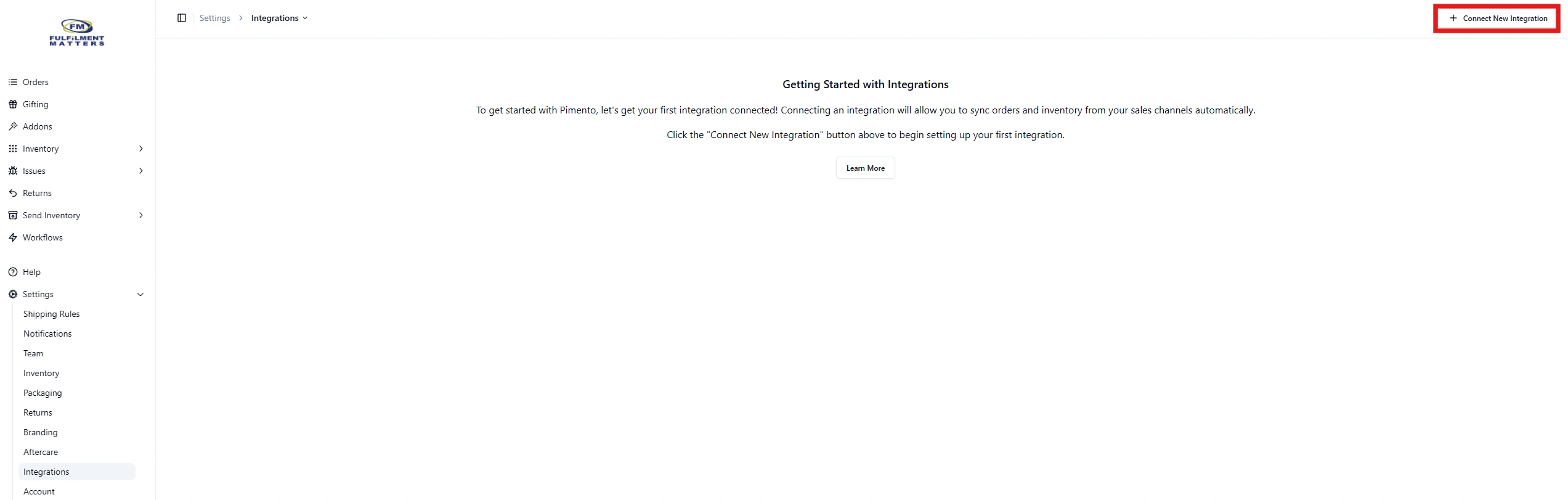
1. Navigate to Integrations. This can be found by going to Settings > Integrations on the WMS dashboard.

Shopify Integration-1

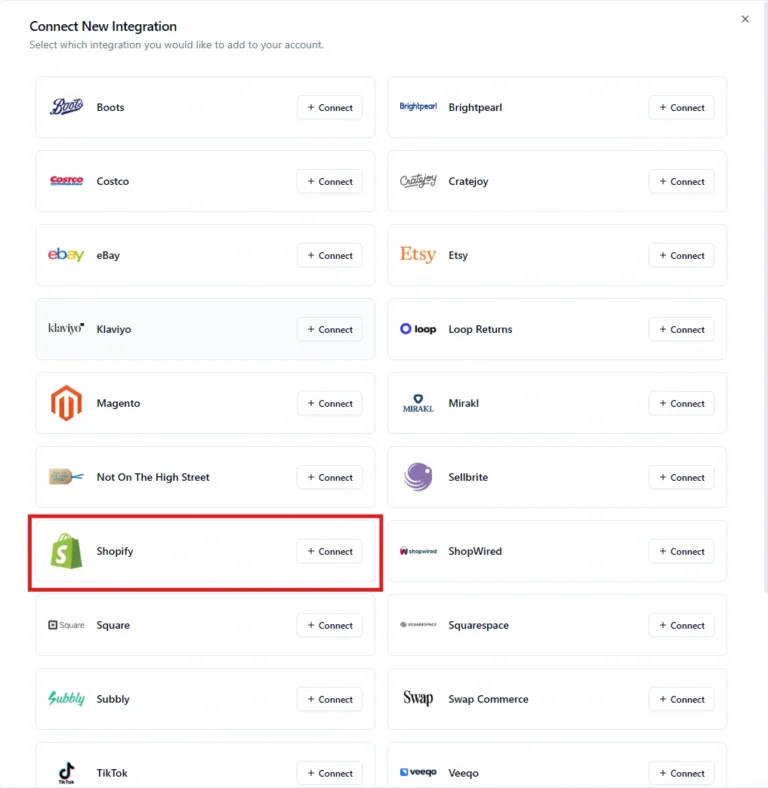
2. Next go to +Connect New Integration in the top right corner. A pop up will appear.

Click on ‘Connect’ on the button for Shopify where you will be redirected.  

Shopify Integration-2
Shopify Integration-3

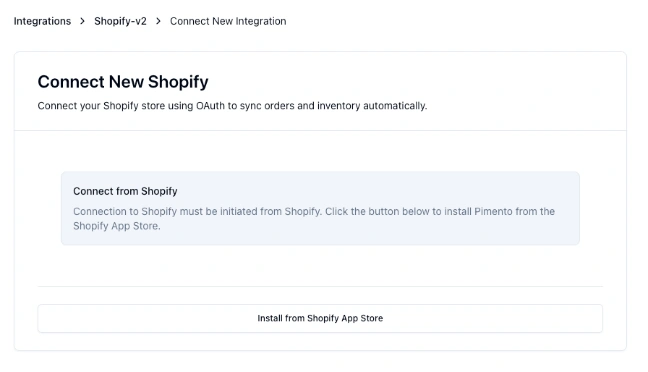
3. From there you will be shown a pop-up asking to install from the Shopify App store, simply hit ‘Install from Shopify App Store’ and you will be redirected.

If you see a slightly different screen, please refer to 3.1 below

Shopify Integration-4

3.1. If you see a slightly different screen, you will be asked to enter your slug. This can be found when you go to admin.shopify.com within the domain bar, e.g from https://admin.shopify.com/store/adam-testing-store you would need to enter adam-testing-store

Shopify Integration-5

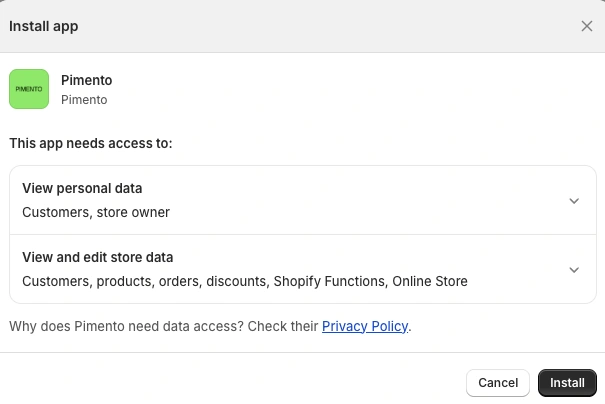
4. You will now be shown the Shopify App Store, click Install. (you will need to ensure you are logged into the correct Shopify store you wish to link)

5. When re-directed to Shopify you will be prompted to accept the Pimento App Shopify permissions, these are required to download and send fulfilment updates.

Last Step is IMPORTANT

6. Once accepted you will be redirected back to the WMS with your settings page now available, you will NEED to set a fulfilment location (our location or the default location depending how you have setup Shopify) so that orders can import and export. Also, you can enable Inventory sync if required. See Inventory Sync for more infomation

Integration: COMPLETE