Support

Welcome to our support page.

Here on our support page is a guide to get you started on our WMS. 

Please use the sub menu below to check out some of the areas on our WMS. 

Orders

The orders page is without a doubt the most visited page on the WMS system, it is where the magic happens! This is where you have visibility of D2C (Direct to Consumer) and B2B (Business to Business) orders including the current status of them. There are multiple searching field options so you can toggle clearly what information you are looking for:.

Status

There is a Status field and here you can select the below options to filter your search:

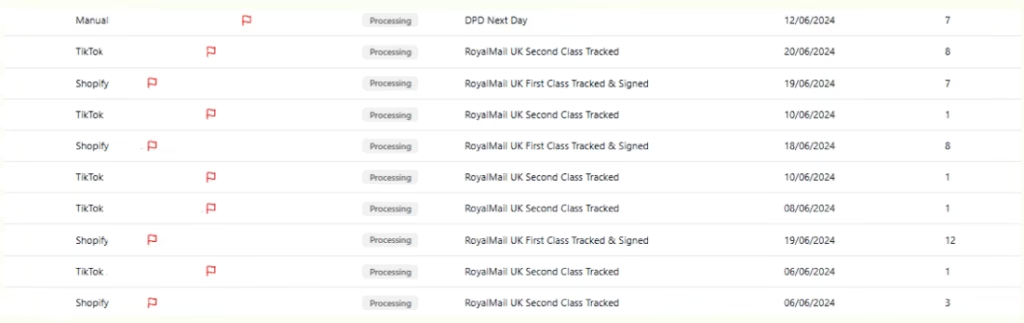
Processing: When an order is in a processing state, it means that it is awaiting to be picked by the warehouse team. This is the status when an orders pulls through from a sales channel or has ben created manually. You can edit things such as the items in the order, quantity, customs value shipping address and shipping method.

Processing

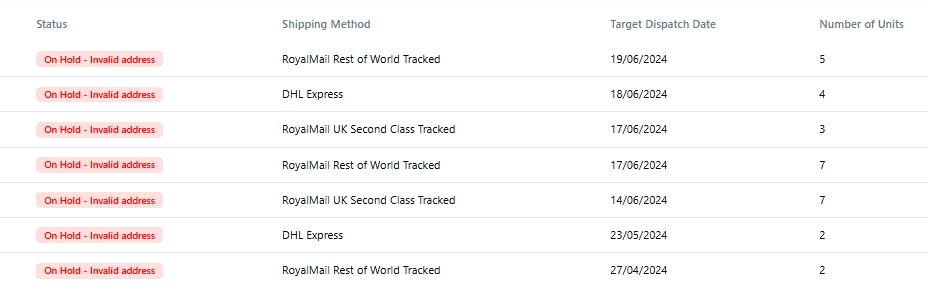
On Hold: From on hold, you can also filter this further using the ‘+ On Hold Reason’ by selecting reasons like Awaiting Payment, Inventory Unavailable, Missing Customs Value, Review Required, Fraud Risk, Invalid Address or Invalid Shipping Method. By filtering these orders it will allow you to only see those orders that need attention or tweaking.

on hold

Picked: This means that the order has been physically picked in the warehouse and will shortly be packed. At this stage the order contents can not be edited although you can still edit the shipping address, shipping method and customs value.

Packed: Orders mostly do not stay in this status for a long period of time as the order usually goes straight to shipped.

Shipped: The order has been completed and will be handed over to the courier. To filter this down further you can select the ‘+ Delivery Status’ button and it will show status’s such as Shipped-Pending (awaiting to be scanned into the couriers network) In-Transit, Returned, Failed, Delivered or Shipped Unavailable (untracked service has been used and there is no tracking information available.)

Cancelled: Order has been cancelled in Pimento. Please note that any order cancelled in a sales channel ie Shopify will not automatically cancel it in Pimento, it will need to be done within the system using the ‘Edit Status’ button.


Channel

On this field you can filter to which channel of order you wish to see, for example if you use Shopify, TikTok and Etsy for your brand, you can select a specific channel such as TikTok, you can then filter them further to search On Hold – Invalid Address TikTok Orders orders to action. This function is helpful as it allows you to have the option to filter the orders vs the orders page which is mixed as the orders pull through to Pimento.


Shipping

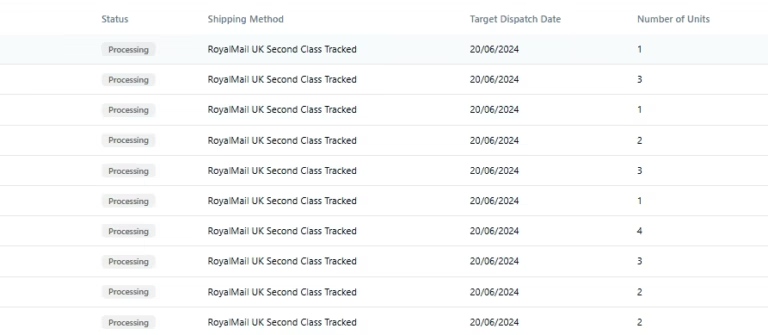
Here you can select any shipping option and orders with this on the order will show, for example you could filter Royal Mail Second Class Tracked (Tracked 48) to see how many orders are being sent on that service or alternatively you can see which orders have been marked as Collection, this one is mainly used for B2B (Business to Business) orders.


Priority

Priority: This is where the flag has been added to orders which prioritises the stock allocation to those orders so they are dispatched first. (The flag appears at the end of the order number.)Standard: Orders that do not have the priority function.

priority

Product

There is a drop down and it will show all the products and inserts in your inventory, for ease or brands with a high amount of SKU’s there is also a search bar function. This allows you to search for stock allocated in orders, for example you can filter Shipped/Intensive Hair Mask and it will show you all the orders that have been shipped with that SKU within the order or use it to see what orders are being held up due to lack of inventory, On-Hold/Shampoo Bar Green (45 results).


Create an order

You can create a manual order, you will just need to fill out the basic information that comes up such as reference (this can be a order number you input) shipping method, shipping address and then at the bottom you can add the SKUs you wish to be in the order. If you are uploading a bulk of orders you can use the ‘upload CSV’ feature – you will need to download ‘csv file’ and ensure the orders are in the correct format for them to pull through to the Pimento system.


Fields

These can be located on the top right of the orders page and are used to filter down orders even further such as Customer First Name, Shipping Line One, Postcode, Customs Value, Channel Tags, Shipping Method and Country just to name a few!

Inventory

Here the inventory page will show all products (SKU’s) we have on Pimento with the stock levels attached.

Stock

Using the Stock field search you can filter your search easier – especially if there are alot of products!

In Stock: This means the total number of units we have in the warehouse either in frontstock (stock is located in a picking bin where orders are picked from) or backstock (stock is located in a pallet location)

Units Sold: This shows the amount of units that have been ‘sold’ (reserved) for an order – for example if you have 20 units of Lipstick but 10 are in an order it would show as 10 units sold

Units Available: This indicates how many units are available to be added to new orders

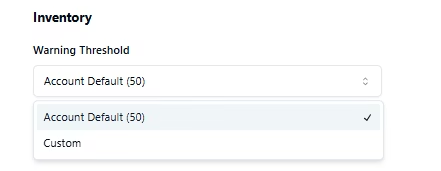
Out of Stock: This feature was added to be able to clearly see what skus we do not have stock for, this is most commonly used for replenishing stock to the warehouse. Something that can also do this is ‘Inventory Out Forecast’ – the system uses the last 4 weeks of sales trends to predict how long the stock will last, ie 2 weeks or 3 months. Another option is to utilise the ‘Inventory Threshold’, this can be found within the information of a product. You can set this as a custom or use the Pimento default.

inventory1

Inventory Condition:

We ensure that clients have visibility of both sellable and unsellable stock – here you can toggle between both conditions.


Deleted Skus (Hidden):

Sometimes as clients change up the products or as selected lines become discontinued there is the feature to delete products from the inventory page (these are just hidden so it keeps everything tidy) – You can always restore these skus/have visibility of them by using this field.


Creating New Products:

Create Products

You would just fill out the information shown below and hit submit, or alternatively you can bulk upload products. Top Tip: Download the CSV file first and ensure the orders are in the correct format of the file so it uploads correctly to the system!

Bundles

Using the bundles feature on Pimento allows you to sell multiple skus/units in one place! How to set up: Enter the name of the bundle and choose a sku, then add the products and units within that bundle and then submit!

The system will do all the heavy lifts of working out how many bundles can be sold with the inventory levels you currently have in the warehouse. It will look something like this:

Inserts

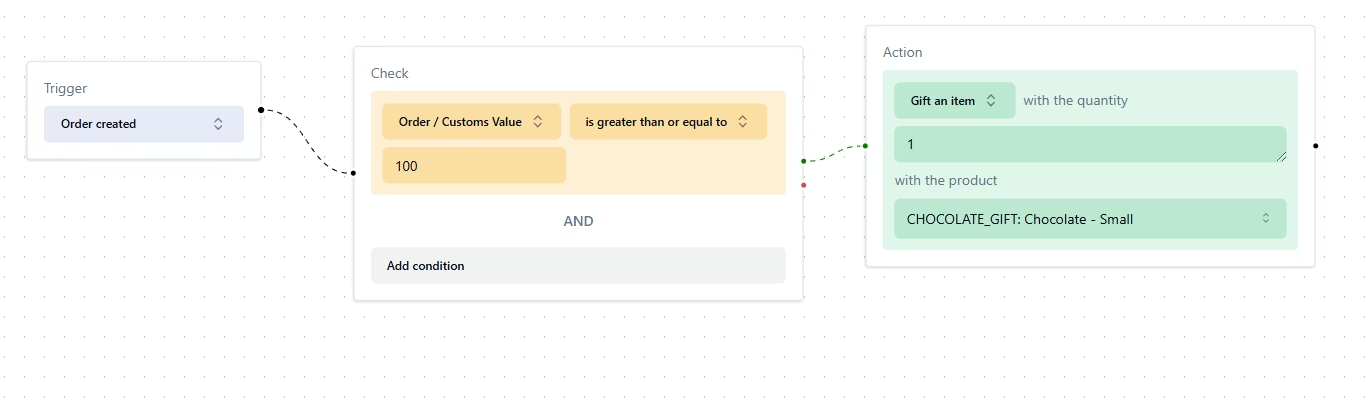
Inserts can come in many different forms such as stickers, card inserts often known as Thank You Cards, tissue paper or sweets. Anything that is an addition with no money value. Brands will often add a Thank You Card or Instructions Card to orders. It can be automatically set up using Workflows to add this into each order when it comes into Pimento. Below you can see where a chocolate is being used as an insert and in what cases the client would like it to be added to orders.

inserts

Issues

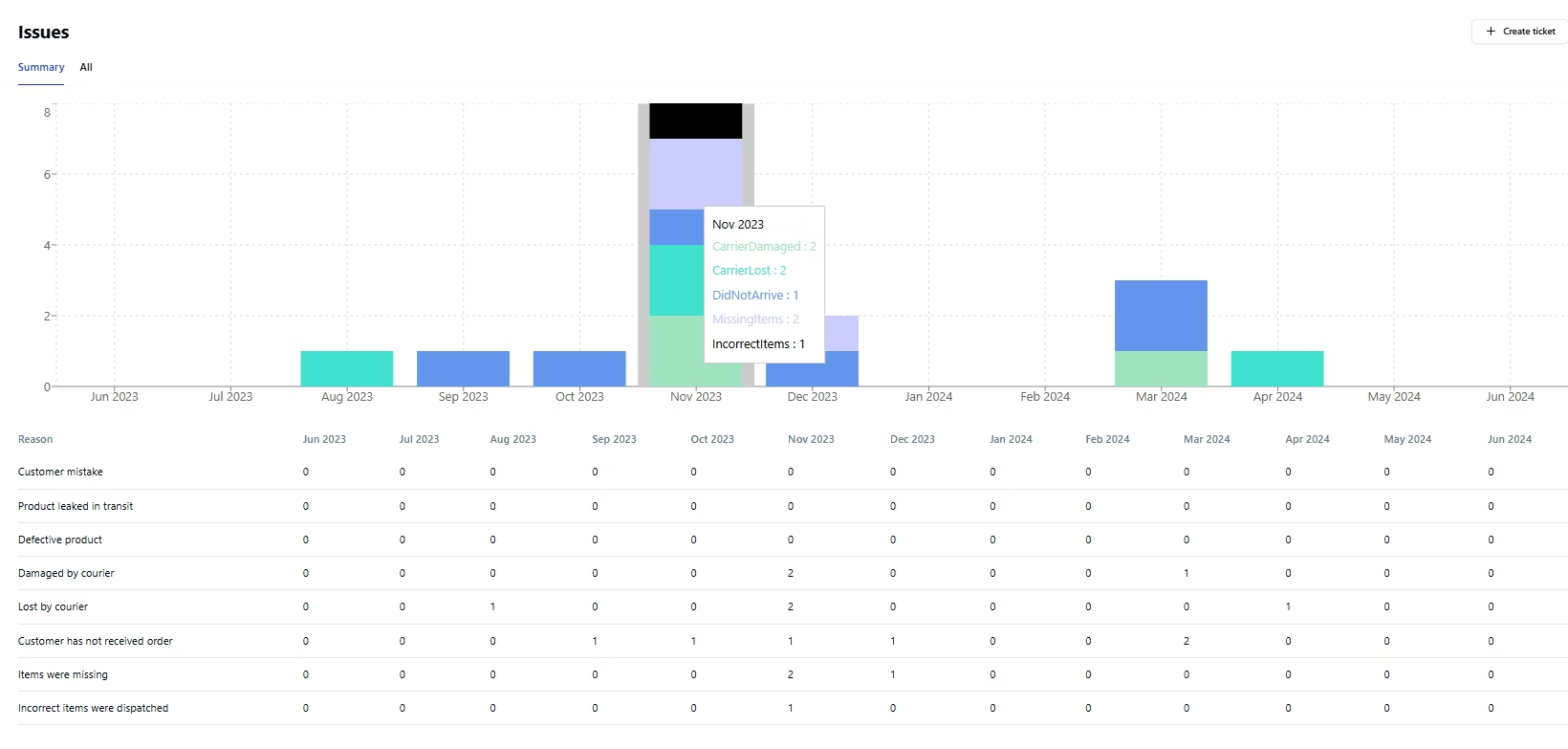
This is a tab that we hope you do not have to use but feel that by being able to log an issue orders it allows visibility into what could be affecting brand and customer satisfaction. Below shows that when an issue is logged it gets added to this data sheet for the month, highlighted also is a breakdown in the month issues that was either logged by the end customer or the client.

issues-1

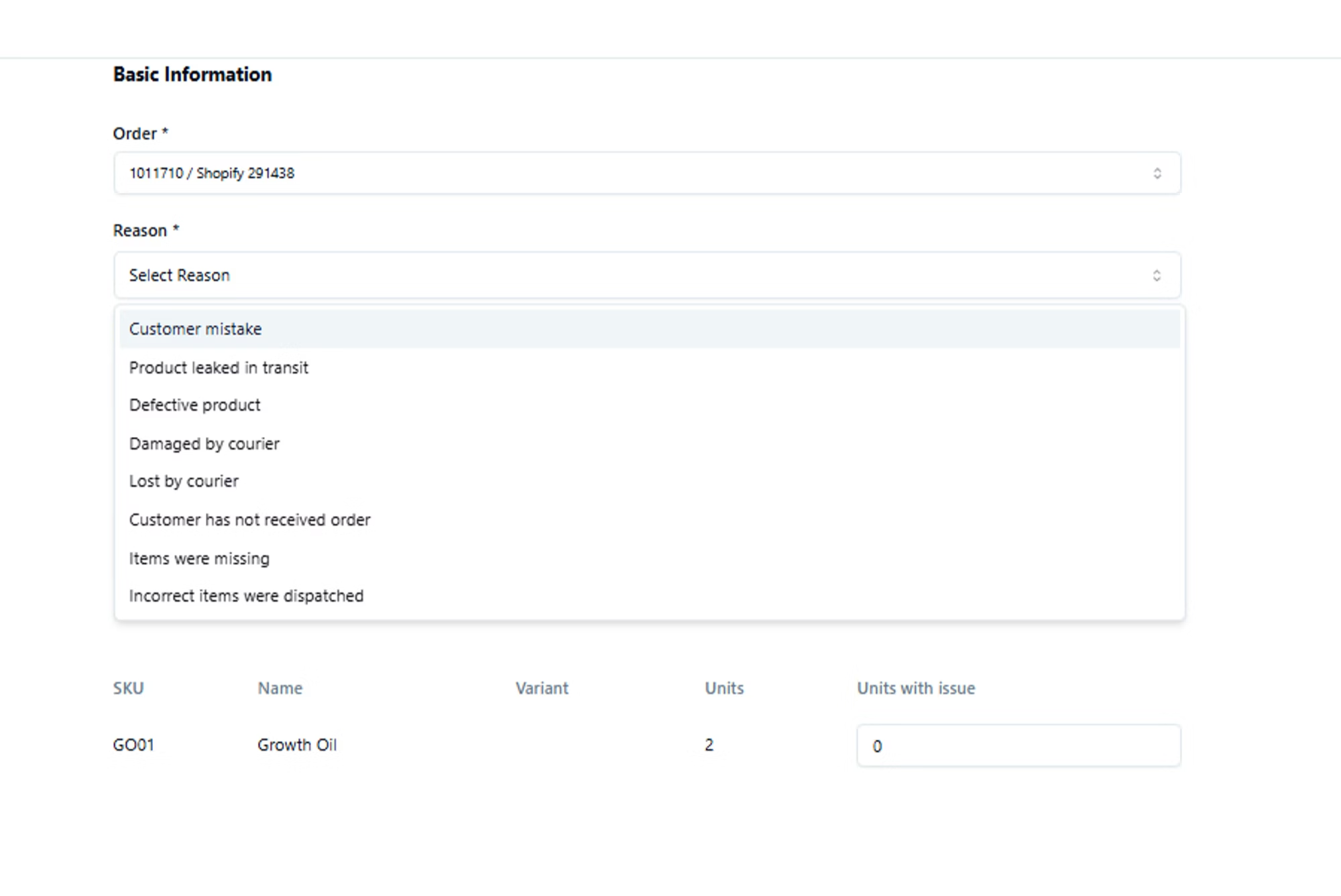
You can add an issue for many reasons as shown above, the customer could of made a mistake when ordering, damage or loss via the courier company or even where the customer expected a different item in the parcel. Pimento monitors the reasons that have been selected when creating issues and it then looks at the 3PL’s (Third Party Logistics) accuracy when dispatching orders.

issues-2

Returns

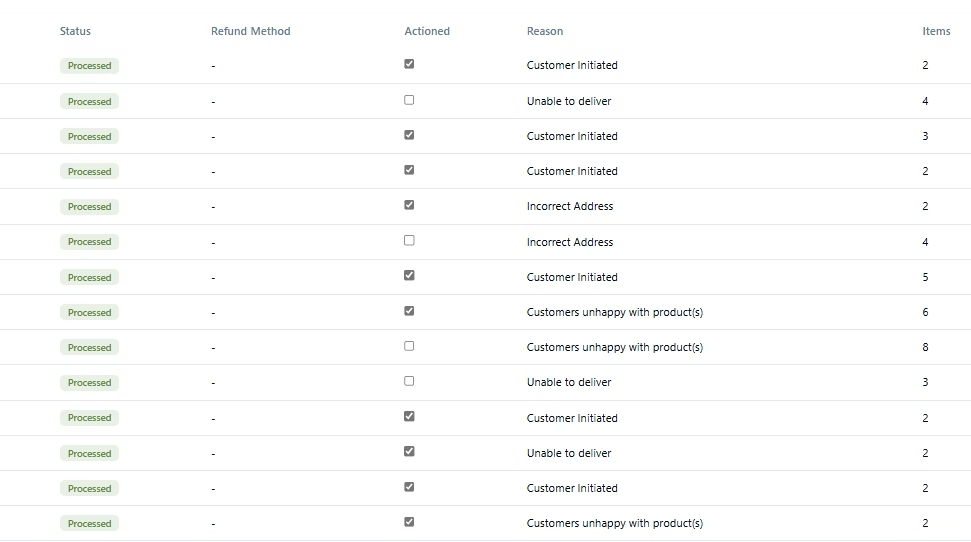
The returns tab filters any expected, received or processed returns. You can click into each order and know what was expected in the order, the warehouse team can say what stock that actually received back and if it restocked into sellable or unsellable inventory. If for any reason the product can not be restocked then the warehouse team will add a comment on what the issue is and add images so brands can pass this onto the customer if they are enquiring for a refund.

returns-1

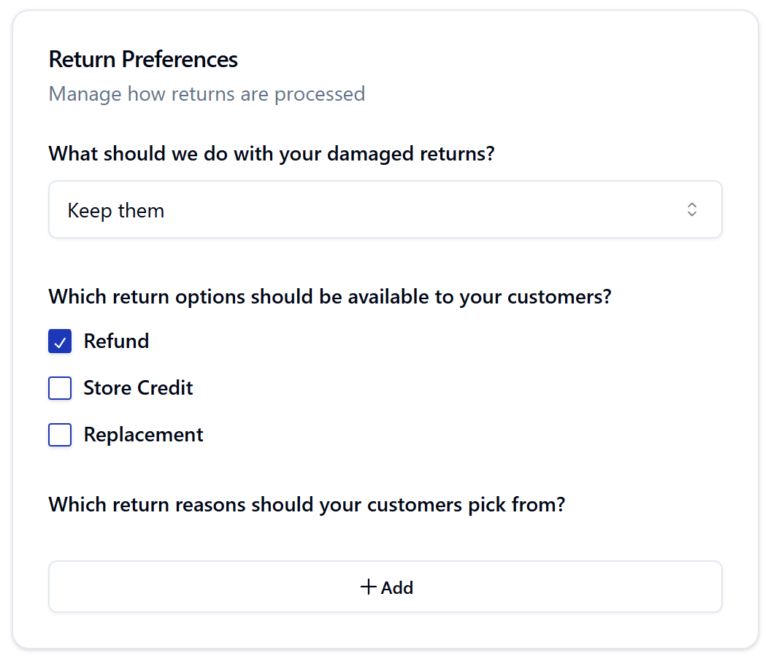
There is also a ‘Actioned’ feature where brands can tick if the customer has been refunded or not to allow as much visibility as possible when looking at the returns tab. In Settings>Returns you can also add/choose which ‘Refund Methods’ you wish to offer your customer, this could be Store Credit or even Replacement.

returns-2

Send Inventory

Here you can submit an ASN (Advanced Shipping Notice) onto Pimento, this essentially allows the warehouse team to have notice of your shipment coming into the warehouse. Especially if you would like your shipment rushes when it arrives, we ask for as much notice as possible!

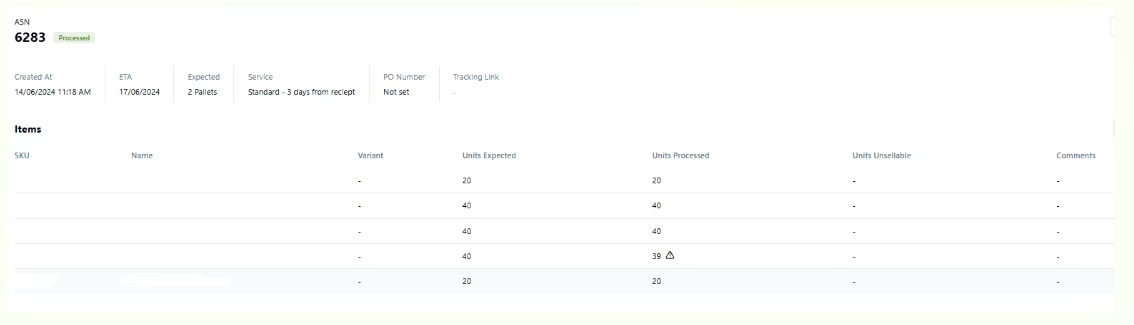
When you click into the ASN, it will show something similar to the below, the ‘Units Expected’ is what was submitted at the time of creating the ASN and ‘Units Processed’ is what the warehouse team counted when the shipment was being processed in. Any discrepancies will show a warning sign to alert you of the discrepancy. If anything arrives to us in an unsellable way, similar to returns the warehouse team will add a comment and attach any images so you have visibility of the condition of the stock.

It is good practice to add tracking information to an ASN and always keep the estimated time of arrival up to date using the edit button. This then keeps the warehouse team up to also!

send-inventory

Inventory Sync

Keep stock levels up to date on your sales channels

Inventory Sync is a feature available for most integrations, allowing you to sync your stock levels on Pimento to your store.

​Configuration

There are three levels of inventory sync generally available:

  1. Daily: Stock levels will sync daily overnight, this is perfect for brands who operate a single sales channel or are rarely go out of stock. This is available on most channels.
  2. Live: Stock levels will sync immediately when they change on Pimento. This is only available for a few channel integrations (notably Shopify). Whilst this can provide the most timely inventory sync, high-volume sellers can run into issue with Rate Limits (where the store only allows a certain number of updates per hour or day). When this setting is enabled, a daily sync is also performed as per above.
  3. Disabled: Stock levels will not be synced to this sales channel.

Bundles

Inventory Sync will also ensure bundle inventory is synced to your sales channel. For example, if you have 12 units of a TShirt SKU (TS-001) and also sell it on your store as a three pack (TS-001-X3), Pimento will know to sync 12 units to your store for TS-001 and 4 units for TS-001-X3.


How to manage inventory sync

On the Pimento dashboard, navigate to Settings > Integrations, and scroll down to the integration you would like to manage.

Within the card for this integration will be a toggle, which lets you switch between the different configurations. There is also a Perform Sync Now button on some sales chanels, which allows an immediate sync to take place in the background – this can take up to 15 minutes to complete.