Magento 2

To connect your Magento 2 store to Pimento, follow the below steps: 1. Within your Magento store, go to the navigation bar on the left hand side and press System 2. Within the popup, select Integrations (within the Extensions category) 3. Add the integration name as Fulfilment Matters, and enter your user password within the […]
Etsy

To connect your Etsy account to Pimento, follow the below steps: 1. Navigate to Settings > Integrations within the WMS dashboard (https://app.getpimento.com) and press +Connect New Integration and then click on the Connect on the Etsy integration. 2. You will be redirected to Etsy where you need to login to your account. 3. Click Grant access […]
Amazon (Sellbrite)

Important Notice: We currently don’t have a direct integration to Amazon, however there is a 3rd party solution which can be used called Sellbrite Sellbrite is a platform which enables brands to list and sell their products on online marketplaces. It is commonly used to connect Amazon stores to our WMS. (This is a subscription […]
eBay

To connect your eBay account to Pimento, follow the below steps: 1. Navigate to Settings > Integrations within the WMS dashboard (https://app.getpimento.com) and press +Connect New Integration and then click on the Connect on the eBay integration. 2. You will be redirected to eBay where you need to login to your account 3. Click Agree and […]
TikTok
Important Notice: Before starting the integration, please make sure that your TikTok store is correctly setup. Please note that the shipping profile needs to be altered on the TikTok shop to ‘Shipped by Seller’ by creating a new template and also please edit each product to use the new shipping profile template. This will solve […]
WooCommerce

To connect your WooCommerce account to Pimento, follow the below steps: Instructions 1. Within the your WordPress instance, navigate to the WooCommerce tab of the sidebar and click on Settings. 2. From the setting menu click on Advanced and then on the sub menu click on REST API Keys. Next, click on Add Key. 3. […]
Inventory Sync

Keep stock levels up to date on your sales channels Inventory Sync is a feature available for most integrations, allowing you to sync your stock levels on Pimento to your store. Configuration There are three levels of inventory sync generally available: Daily: Stock levels will sync daily overnight, this is perfect for brands who operate […]
Shopify

Important: Please make sure our location is setup correctly along with your Shipping Profiles and Shipping Zones within Settings -> Shipping and delivery. You can find helpful information regarding this via Shopify Help, contacting Shopify directly to help with this or contact our IT directly and we will try to help as much as possible. […]
Shipping Rules

These are created normally at the time of onboarding to ensure that orders from a sales channel pull through to Pimento and get dispatched on the correct shipping method. In Shopify for example, the ‘Rate Name’ needs to get inputted into Pimento under ‘Copy’ as this is what matches them together. You can then filter […]
Send Inventory
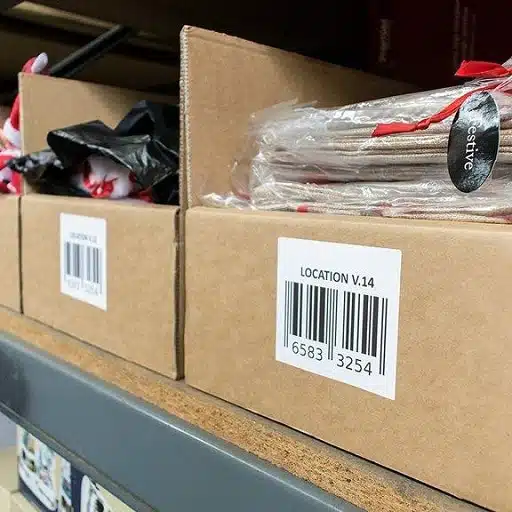
Here you can submit an ASN (Advanced Shipping Notice) onto Pimento, this essentially allows the warehouse team to have notice of your shipment coming into the warehouse. Especially if you would like your shipment rushes when it arrives, we ask for as much notice as possible! When you click into the ASN, it will show […]